
- The entire TEC MTCTE certification process runs online on the mtcte.tec.gov.in portal — from profile creation to certificate download.
- You must get your company profile approved by the MTCTE admin validator before you can file a fresh application.
- A single application can include up to 9 associated models along with the main model.
- TEC's own internal targets are 8 weeks for GCS certificates and 2 weeks for SCS certificates after registration.
Introduction
The TEC MTCTE certification process is completed entirely on the official TEC portal. It involves seven core stages: creating and getting your company profile approved, filing a Fresh Application with product and Bill of Materials (BoM) details, letting the portal auto-assign your certification scheme (GCS or SCS), paying the application fee through BharatKosh/NTRP, getting the product tested at a TEC-designated lab (CAB), resolving any TEC queries during evaluation, and finally downloading the MTCTE certificate once approved.
TEC targets roughly 8 weeks for GCS and 2 weeks for SCS applications after registration, though actual time depends on documentation quality and lab scheduling.

Applying for TEC MTCTE certification on the TEC portal looks simple on paper — register, apply, test, pay, get certified. In practice, most delays don't come from TEC's review; they come from incomplete company profiles, mismatched Bill of Materials entries, or applicants not knowing which certification scheme their product falls under before they start.
This guide walks through the exact TEC MTCTE certification process on the TEC portal, screen by screen, based on the official MTCTE Procedure v3.0 (TEC 93009:2024) and TEC's published user instructions — so you know what to expect before you log in.
Before You Start: You have to Ready With Documents
The portal process moves faster when you walk in prepared. Have these ready before creating your account:
- Company registration documents (Certificate of Incorporation, GST, PAN)
- Authorization letter, if you're applying as an Authorized Indian Representative (AIR) for a foreign OEM
- MoU between the foreign OEM and the AIR, where applicable
- Product Bill of Materials (BoM) in TEC's prescribed format
- Technical datasheet, user manual, and block/circuit diagram of the equipment
- Details of all variants you want covered as "associated models" under the same application
Foreign manufacturers cannot log in and apply directly — they must be represented by an India-registered Authorized Indian Representative (AIR), who creates the profile, files the application, and manages fee payment and testing coordination on their behalf.
Who Can Apply on the TEC MTCTE Portal?
| Applicant Type | Who This Is | Portal Role |
| Indian OEM | A company registered in India that manufactures and brands the product itself | Applies directly under its own profile |
| Authorized Indian Representative (AIR) | An India-registered entity representing a foreign OEM | Creates its own profile first, gets it approved, then adds the foreign OEM's details |
| Foreign OEM | The original manufacturer based outside India | Cannot log in directly; is added as a linked entity under an approved AIR profile |
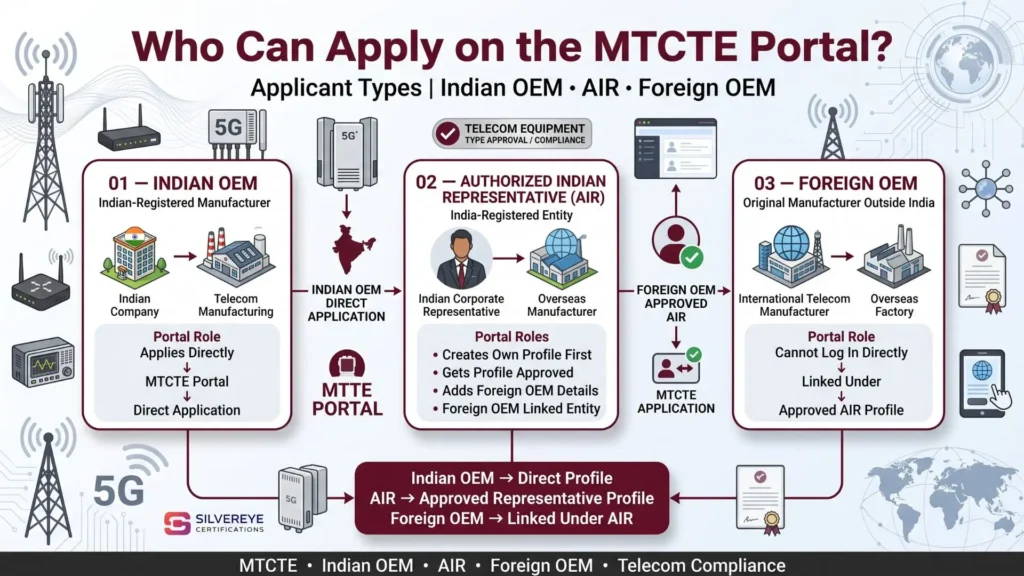
One important sequencing rule from TEC's own user instructions: an AIR should wait for its own company profile to be approved by the MTCTE admin validator before submitting the foreign OEM's details. Applicants who skip this step often see the company name field come up blank when starting a fresh application — that's the portal telling you the profile approval is still pending.
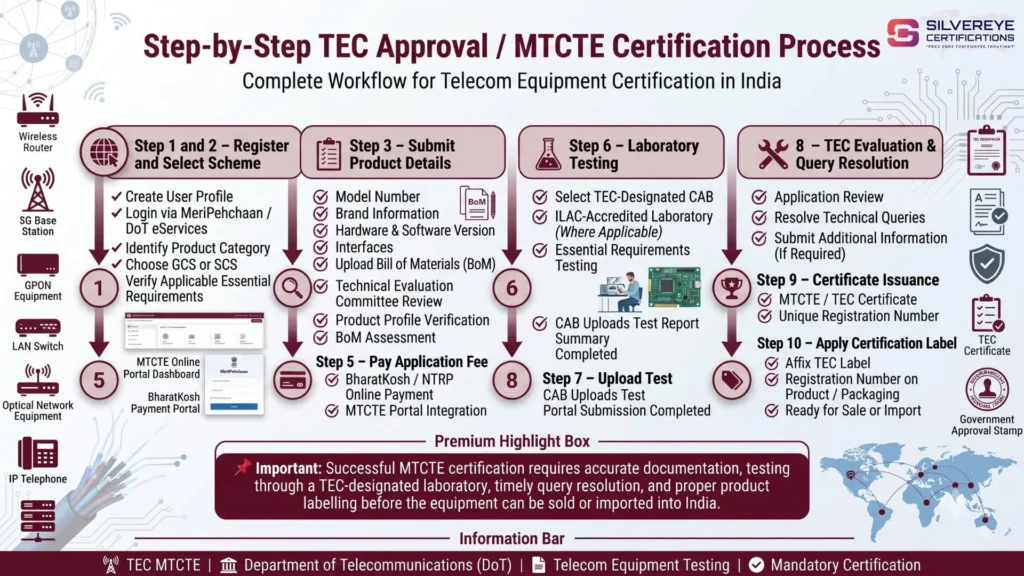
TEC MTCTE Certification Process: Step-by-Step on the TEC Portal
Here is the actual sequence of steps, in the order the portal expects them.
Step 1: Register and Log In to the MTCTE Portal
Go to mtcte.tec.gov.in and click "Register an Account." Login now runs through the government's MeriPehchaan (National Single Sign-On) authentication alongside the portal's own credentials. Keep your registered username and password safe — TEC explicitly does not allow multiple simultaneous logins on the same account.
Step 2: Create and Submit Your Company Profile
On first login, go to "Profile Details" and enter your company information — name, registered address, authorized person's name and designation (exactly as stated in your authorization letter), and supporting documents. Indian OEMs fill in their own details; AIRs fill in their own company details first.
- Note: the manufacturer's factory address is not required on the portal — only the brand owner's (Indian or foreign) headquarters address needs to be entered.
- Your profile is reviewed by the MTCTE admin validator. Until it's approved, you cannot start a fresh application under that profile.
- If you're an AIR representing a foreign OEM, add the foreign OEM's company details only after your own AIR profile is approved — doing it in the wrong order is one of the most common causes of a blank/stuck application.
Step 3: Start a Fresh Application
From your dashboard, click the "Fresh Application" tab. Select "Certification under MTCTE," review the privacy policy and terms and conditions in full, tick "I agree with terms and conditions," and click "Proceed Next."
Step 4: Enter Applicant and Product Details
On the Enter Details page, fill in the product's technical profile: model/brand name, hardware and software version, interfaces, and a description of the Equipment Under Test (EUT). This is also where you list every associated model you want covered under the same certificate.
- A single MTCTE application can include the main model plus up to 9 associated models.
- If you have more variants than that, file a separate application for the remaining associated models under the same main model — TEC will still recognize them as linked once verified by the test lab.
Step 5: Upload the Bill of Materials (BoM)
Upload your BoM in TEC's prescribed format. Every associated model you're claiming in this application must also appear correctly in the BoM file — the portal cross-checks this, and mismatches are a common reason applications get stuck at the pre-check stage.
Step 6: Let the Portal Confirm Your Certification Scheme
Once product details and BoM are submitted, the portal automatically displays the applicable Certification Scheme (GCS or SCS), the type of Essential Requirement (ER), and the specific ER document that applies to your product category. You can download the applicable ER directly from this screen — worth doing, since it tells you exactly what your test report needs to demonstrate.
Step 7: Pay the Application Fee
Fee payment happens through the NTRP (Non-Tax Receipt Portal)/BharatKosh gateway, linked directly from the TEC/MTCTE portal. Two payment modes are available:
- Online payment: Pay directly through the NTRP gateway using net banking or the supported payment options.
- Offline payment: Select your bank, enter the IFSC code, generate a challan, and complete the payment through your bank; this mode suits companies where a different department handles payments.
- You can track transaction status on your dashboard and use "Refresh Payment Status" if an offline payment hasn't updated yet. Once fees are paid, the application can no longer be deleted from the dashboard.
- All fees are non-refundable, except where the application isn't processed for reasons not attributable to the applicant — refunds in that case need approval from the Senior DDG/Head of TEC.
Step 8: Select a Lab (CAB) and Submit for Testing
Choose a TEC-designated Conformity Assessment Body (CAB) for your product category and coordinate sample submission. Testing is carried out against the Essential Requirements shown on your application. Where currently permitted, test reports from ILAC-accredited labs may be accepted for certain technical (non-security) parameters — but this depends on active TEC notifications, so confirm eligibility before shipping samples overseas.
Step 9: CAB Uploads the Test Report
On completion of testing, the CAB itself uploads the test report summary to the MTCTE portal against your application — you don't need to manually attach it. This is also where a valid BIS certificate or a BIS-recognised lab's safety test report can be submitted in place of separate safety testing, where the ER allows it.
Step 10: TEC Evaluation and Query Resolution
TEC reviews the uploaded test report against the applicable ER. If anything is incomplete or inconsistent, TEC raises a query directly on the portal, and you'll need to respond before the application can move forward. Responding quickly and completely is the single biggest factor in how fast your certificate gets issued from this point.
Step 11: Certificate Issuance and Download
Once TEC is satisfied the product meets all applicable Essential Requirements, it issues the TEC/MTCTE certificate with a unique registration number covering the main model and all verified associated models. You can download the certificate and acknowledgement directly from your dashboard.
Step 12: Affix the Certification Label
Before the product is sold, imported, or deployed, apply the prescribed MTCTE label — showing the certificate/registration number — on the product or its packaging, as specified in the MTCTE labelling annexure. Note: labelling requirements have, at times, carried a temporary exemption window for newly notified products, so check the current notification for your product category.
Other Application Types on the TEC MTCTE Portal
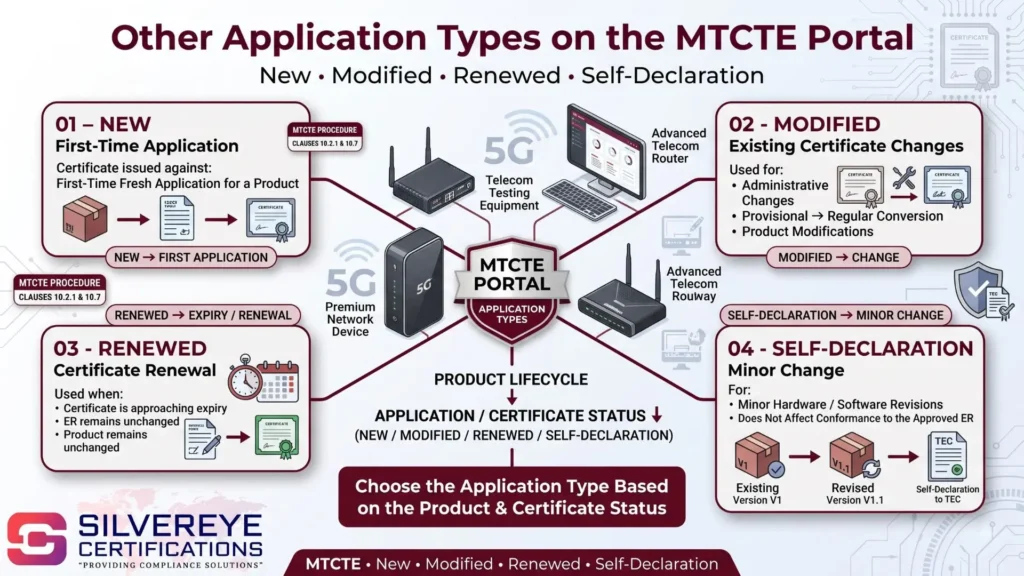
"Fresh Application" isn't the only workflow you'll use over a product's life. The portal recognises several certificate outcomes:
| Application/Certificate Type | When You Use It |
| New | Certificate issued against a first-time (fresh) application for a product. |
| Modified | Used for administrative changes, converting a provisional certificate to regular, or other product modifications on an already-issued certificate. |
| Renewed | Used to renew a certificate before expiry, where the ER and product remain unchanged. |
| Self-Declaration (minor change) | For minor hardware/software revisions that don't affect conformance to the approved ER — a self-declaration to TEC (citing the existing and revised version) can be submitted instead of a fresh application, per MTCTE Procedure clauses 10.2.1 and 10.7. |
Certification Schemes on the Portal: GCS vs SCS
| Parameter | General Certification Scheme (GCS) | Simplified Certification Scheme (SCS) |
| Assigned to | Products requiring full lab testing against every applicable ER | Selected lower-risk product categories notified by TEC |
| What's submitted | Full CAB test reports evaluated in depth by TEC | Compliance checklist plus a Self-Declaration of Conformity (SDoC), backed by ER-based testing |
| TEC's internal target | Certificate issuance targeted within roughly 8 weeks of registration | Certificate issuance targeted within roughly 2 weeks of registration |
The scheme is not something you choose manually — the portal assigns it automatically based on your product category once you submit product details, and it's visible on-screen before you proceed to payment.
How Long the TEC MTCTE Portal Process Actually Takes
TEC publishes internal performance metrics on its own Monitoring Dashboard, tracking average evaluation time, average validation time, and average certification time at each stage. In practice, published thresholds are:
| Stage | Typical Duration |
| Profile creation & admin validator approval | A few days, assuming documents are complete |
| Fresh application + BoM submission + pre-check | 1–2 weeks |
| Lab testing (GCS — full testing) | Several weeks, depending on product complexity and lab scheduling |
| Lab testing/evaluation (SCS — reduced testing) | Faster than GCS, given the lighter evaluation load |
| TEC evaluation and query resolution | Varies — directly tied to how fast the applicant responds to queries |
| TEC's own internal target (GCS) | Certificate issuance within ~8 weeks of registration |
| TEC's own internal target (SCS) | Certificate issuance within ~2 weeks of registration |
TEC itself tracks how many GCS certificates exceed the 8-week threshold and how many SCS certificates exceed the 2-week threshold — which tells you the timelines above are targets, not guarantees. The applications that stay within target are almost always the ones with a clean BoM, a correctly sequenced AIR/OEM profile, and fast responses to TEC's queries.
MTCTE Application Fees and Payment on the Portal
Fees are not a flat number — they vary by product group (based on testing complexity), certification scheme, and application type (fresh, renewal, or modification). TEC publishes the exact fee schedule in Annexure-C of the MTCTE Procedure, revised periodically, so always check current figures on the portal before budgeting.
- Application/processing fee: Charged per application, scaled to the product group.
- Lab/CAB testing charges: Paid separately to the testing lab, not to TEC.
- Annual Certification Fee (ACF): A recurring fee to keep an issued certificate active.
- Renewal fee: Payable when renewing a certificate ahead of expiry.
All payments run through BharatKosh/NTRP; since the amount is remitted directly into the Consolidated Fund of India, no additional GST is added and TDS is not deducted on these payments.
Certificate Validity and Renewal on the Portal
A regular MTCTE certificate is valid for 10 years from the date of issue. To renew before expiry:
- Log in and initiate a renewal application from your dashboard before the current certificate lapses.
- Confirm whether the applicable ER has changed since your original certification — if it has, TEC may require fresh or supplementary testing.
- Pay the applicable renewal fee via BharatKosh/NTRP.
- Submit any updated company or product documentation.
- TEC reviews and reissues the certificate — shown on the portal as a "Renewed" certificate type, with an updated validity period.
Provisional certificates (historically issued where certain ER parameters were temporarily relaxed) carried a 2-year validity; note that MTCTE Procedure v3.0 has removed issuance of new provisional certificates for most categories, so confirm current applicability for your product before assuming this route is open.
Common Mistakes That Slow Down the Portal Process
- Submitting the foreign OEM's details before the AIR's own profile is approved — this is the single most common reason a fresh application shows a blank company name field.
- Listing associated models in the application that don't exactly match the BoM file — leads to pre-check rejection or delay.
- Exceeding the 9-associated-model limit per application instead of splitting into a second application.
- Choosing a CAB without checking whether it's actually designated for every parameter your product needs tested — some labs are designated only for specific ERs.
- Ignoring a TEC query on the portal for an extended period — the application simply sits until you respond.
- Assuming payment can be reversed to "delete" an application — once fees are paid, the application cannot be deleted from the dashboard.
Why the Portal-Based Process Matters
- Full transparency: You can track every stage — profile approval, application, payment, testing, evaluation, and certificate issuance — from one dashboard.
- Centralized fee handling: BharatKosh integration removes manual bank-transfer coordination with TEC.
- Faster associated-model coverage: Once approved, up to 9 variants ride on the same certificate as the main model.
- Auditable history: Certificate type (New, Modified, Renewed) is tracked against each product, useful for audits and tenders.
- Published performance benchmarks: TEC's own monitoring dashboard gives applicants a realistic timeline to plan around.
What's Changed on the TEC MTCTE Portal for 2026
- Portal login now integrates with MeriPehchaan (National Single Sign-On), alongside the existing MTCTE credentials.
- MTCTE Procedure v3.0 (TEC 93009:2024) remains current, with periodic clause-level amendments (most recently touching clause 17.2 and related annexures).
- New MTCTE and Voluntary Certification dashboards have been added to the portal homepage for real-time application tracking.
- Phase VI product categories became mandatory from 24 August 2025, so more product types now need to go through this exact process.
- The Telecommunications (Framework to Notify Standards, Conformity Assessment and Certification) Rules, 2025 now sit alongside the original Telegraph Rules framework, aligned with the Telecommunications Act, 2023.
Conclusion
The TEC MTCTE certification process is straightforward once you understand the sequence: approved profile first, clean BoM-matched application second, correct fee payment third, lab testing fourth, and fast query responses in between. Most delays applicants run into aren't caused by TEC's review speed — they're caused by skipping the profile-approval order, mismatched associated models, or slow responses to portal queries. Get those three right, and TEC's own published targets — around 8 weeks for GCS and 2 weeks for SCS — are realistic to hit.
Frequently Asked Questions
Where do I start the TEC MTCTE certification process?
You start at mtcte.tec.gov.in by registering an account, then creating and submitting your company profile for approval before filing any application.
How long does the TEC MTCTE portal process take from start to finish?
TEC's internal targets are roughly 8 weeks for GCS certificates and 2 weeks for SCS certificates after registration, though actual time depends on documentation quality, lab scheduling, and how fast you respond to TEC's queries.
Can I apply on the TEC MTCTE portal before my company profile is approved?
No. A fresh application depends on an approved company profile. If you try before approval, the company name field on the application often appears blank, which usually means the profile is still pending or was rejected.
How many product variants can I include in one TEC MTCTE application?
Up to 9 associated models can be included with the main model in a single fresh application. Additional variants beyond that require a separate application under the same main model.
Does the TEC MTCTE portal decide whether my product needs GCS or SCS?
Yes. Once you submit product details and the Bill of Materials, the portal automatically displays your assigned certification scheme (GCS or SCS) along with the applicable Essential Requirement.
How do I pay the MTCTE application fee?
Through the NTRP (Non-Tax Receipt Portal)/BharatKosh gateway linked directly from the MTCTE portal, either online (net banking) or offline (bank challan with IFSC details).
Can I get a refund if I paid the MTCTE fee by mistake?
MTCTE fees are generally non-refundable. A refund is possible only if the application isn't processed for reasons not attributable to the applicant, and it requires approval from the Senior DDG/Head of TEC.
Can I delete an TEC MTCTE application after paying the fee?
No. Once the application fee is paid, the "Delete Application" option on the dashboard is no longer available for that application.
What happens if TEC raises a query during evaluation?
The query appears on your portal dashboard, and the application stays on hold until you respond with the requested clarification or documents. Faster responses directly shorten your certification timeline.
Can I make minor product changes without filing a new TEC MTCTE application?
Yes, for minor hardware/software revisions that don't affect conformance to the already-approved Essential Requirements, you can submit a self-declaration to TEC instead of a fresh application, per the MTCTE Procedure.
Do foreign manufacturers use the portal directly?
No. A foreign OEM must be represented by an India-registered Authorized Indian Representative (AIR), who manages the profile, application, payment, and testing coordination on the portal.
How do I renew my TEC MTCTE certificate on the portal?
Log in before the certificate expires, start a renewal application from your dashboard, confirm whether the applicable Essential Requirements have changed, pay the renewal fee via BharatKosh, and submit any updated documentation for TEC's review.