

- Follow the Correct Registration Sequence: The ICEGATE registration process generally involves selecting your user role, verifying IEC and GSTIN details, completing OTP verification, obtaining a Reference ID, filling out the role-specific form and submitting it for approval.
- Update Contact Details Before Applying: Ensure your mobile number and email address are current in the relevant DGFT and GSTN records so you can complete the required OTP verification.
- Keep Your Reference ID Safe: Save the Reference ID generated during registration. It may allow you to resume an incomplete application without starting the process again, subject to the portal's validity rules.
- Monitor Your Registered Email: Check your registered email for ICEGATE registration status updates, including approval or rejection notifications and any reasons or corrective steps provided.
Introduction
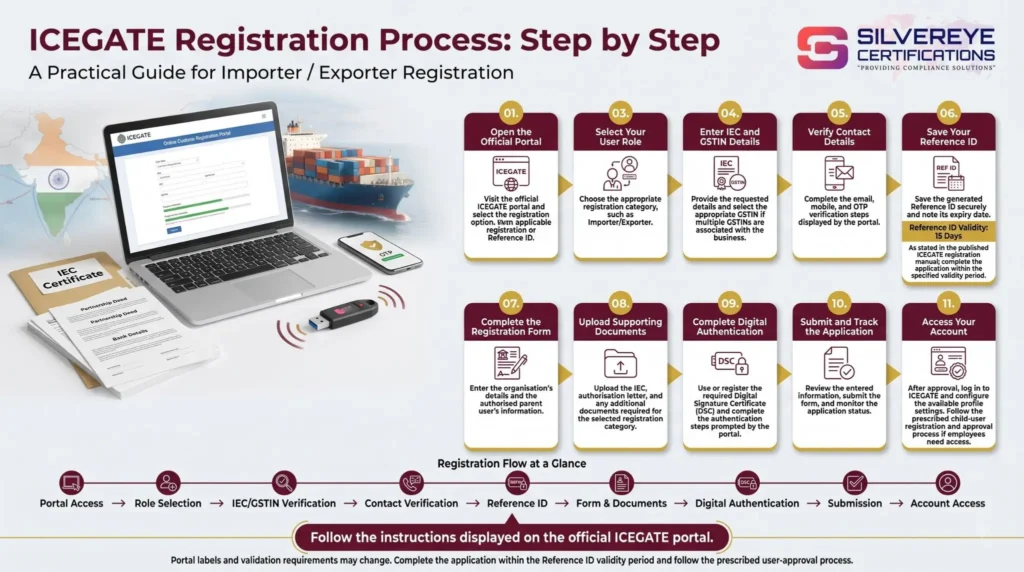
The ICEGATE registration process involves six main stages on the official ICEGATE portal: selecting your user role, verifying your IEC and GSTIN, confirming your registered mobile number and email through OTPs, obtaining a Reference ID, completing the role-specific registration form with the required documents and authorized user details, and submitting the application for Customs verification.
Registration updates, including approval or rejection details, are communicated through the registered contact channels as applicable. Before starting, ensure your IEC is active, your contact details are up to date with DGFT and GSTN, and the authorized signatory's Digital Signature Certificate (DSC) is ready, where required.

The ICEGATE portal does not charge a registration fee, although obtaining a DSC or hiring professional assistance may involve additional costs. This guide explains the registration steps, expected processing time, solutions to common errors and the actions to complete after approval.
ICEGATE Registration Process
The ICEGATE registration process involves selecting the appropriate user role, verifying business details, completing contact verification, generating a Reference ID where applicable, submitting the registration form and obtaining approval.
The following table summarizes the standard role-registration process. The exact steps may vary depending on your user category and the registration option currently available on ICEGATE.
| Stage | What You Do | What You Need |
|---|---|---|
| 1. Role selection | Select your user category, such as Importer/Exporter | Correct user role for your business |
| 2. IEC and GSTIN verification | Enter your IEC and relevant GSTIN details | Active IEC and applicable GSTIN information |
| 3. Contact verification | Verify your registered mobile number and email using OTPs | Updated contact details at DGFT and GSTN |
| 4. Reference ID | Save the Reference ID generated by the portal | Securely stored Reference ID |
| 5. Role registration form | Enter business and authorised-user details, upload documents and complete authentication | Authorisation letter, DSC and entity documents, as applicable |
| 6. Approval | Submit the application for verification and receive the decision | Additional information if requested by Customs |
For a broader explanation of eligibility, documents, fees and benefits, refer to our main ICEGATE Registration guide. This page focuses specifically on the ICEGATE registration process.
Before You Begin: Pre-Checks That Help Prevent Rejection
Many registration errors arise from mismatches in the records used for verification. Before starting the ICEGATE registration process, review the following checklist.
| Check | Why It Matters | How to Fix It |
|---|---|---|
| IEC is active | An inactive IEC can prevent successful validation | Check the IEC status and resolve issues through DGFT |
| GSTIN is integrated and mapped, where required | Customs needs the relevant IEC and GSTIN details for verification | Use the GSTIN integration and IEC–GSTIN mapping utilities on ICEGATE |
| Mobile number and email are current | Registration OTPs are sent to the contact details available in the relevant records | Update the details at DGFT and GSTN before applying |
| Business and PAN details match | Differences between the application and supporting documents can trigger queries | Correct inaccurate records and prepare matching documents |
| Authorised person is identified | The registration must identify the person authorised to operate the account | Prepare the applicable authorisation letter |
| DSC is ready, where required | The standard role-registration route requires the prescribed digital authentication | Obtain or renew the appropriate DSC through a licensed Certifying Authority |
Tip: Keep access to your registered mobile phone and email inbox before requesting OTPs. Enter the codes promptly and follow the validity period displayed on the portal.
Simplified Registration vs. Standard Registration with DSC
ICEGATE has published guidance for both simplified registration and standard registration. These routes serve different purposes, so it is important to choose the one that meets your requirements. Confirm their current availability and eligibility on the official portal before applying.
| Feature | Simplified Registration | Standard Role Registration |
|---|---|---|
| Main purpose | Basic portal access and eligible information services | Full registration for permitted customs-related activities |
| Verification | IEC/GSTIN and OTP verification, as specified | Business details, supporting documents and prescribed authentication |
| DSC | Not required under the published simplified-registration procedure | Required under the standard process where specified |
| Document upload and approval | The published simplified route does not require the same document-upload and approval process | Supporting documents and Customs approval are part of the process |
| Customs document filing | Not permitted under the published simplified-registration route | Available after approval, subject to the user's role and permissions |
The simplified route is intended for basic access and information services. If you need to file Bills of Entry or Shipping Bills, use the registration route that supports customs-document filing.
ICEGATE Registration Process: Step-by-Step
The following steps describe the standard role-registration process. Portal labels may change, so use the current instructions displayed on ICEGATE.
- Open the official portal: Visit icegate.gov.in and select the registration option. Check that you are using the official government website.
- Select fresh registration and your role: If you do not already have a suitable registration or Reference ID, choose the applicable new-registration option. An importer or exporter generally selects the Importer/Exporter role.
- Enter your IEC and GSTIN: Provide the requested details and complete the system's verification checks. If multiple GSTINs are associated with your IEC, select the relevant GSTIN for your intended business activity.
- Confirm your contact details: Select the mobile number and email address available for verification. Importers and exporters should ensure that the relevant details are updated with both GSTN and DGFT.
- Complete OTP verification: Generate and enter the required mobile and email OTPs according to the portal's instructions. If a code does not arrive, check your contact details and use the available resend option.
- Save your Reference ID: After successful verification, the portal may generate a Reference ID for continuing the application. Save it securely. ICEGATE's published registration guidance specifies a 15-day validity period for the Reference ID; complete the application within the period displayed by the portal.
- Complete the role-registration form: Enter the organisation's details and the authorised user's information. Upload the required supporting documents and save your progress where the draft option is available.
- Complete digital authentication: Follow the prescribed DSC and authentication steps for your registration route. If the DSC is not detected, check the certificate, token, drivers and required signing utility.
- Review and submit: Check the business name, IEC, GSTIN, authorised-user details and document quality before submitting the application.
- Wait for the decision: ICEGATE reviews the application and issues the registration outcome. According to the published ICEGATE registration FAQ, the login credentials are sent to the registered email after approval; rejection reasons are also communicated by email.
Important: Do not share your OTP, password or DSC PIN with a consultant or an unauthorized person. Keep control of your business account and provide access only to authorized users.
What You Fill In on the ICEGATE Role Registration Form
The role registration form is an important part of the ICEGATE registration process. Incomplete details, inconsistent records or missing documents can lead to queries or rejection.
Depending on your user category and entity type, you may need to provide the following information:
- Organisation Details: Legal name, constitution type, PAN, registered address and other business details required by the form.
- Authorised Parent User Details: Name, designation, contact information and identity details of the person authorised to manage the account.
- Supporting Documents: IEC, authorisation letter and entity-specific proof, as required for your registration category.
- DSC Details: Details of the Digital Signature Certificate used for the prescribed digital authentication.
- Declaration: Confirmation that the submitted information and documents are accurate.
Upload clear, complete and readable documents in the formats and file sizes accepted by ICEGATE. The registration guidance requires the applicant's name and business details to match the relevant identity and supporting records.
Role-Wise Notes on the ICEGATE Registration Process
The steps and documents required for ICEGATE registration vary by user category. Check the relevant role-specific instructions before applying.
| Role | What Changes in the Process |
|---|---|
| Importer / Exporter (IEC holder) | Registration involves IEC verification, applicable GSTIN checks, parent-user details and supporting authorisation documents. |
| IEC Authorised Person / Child User | The parent user initiates the process. The child user completes the required details, and the parent user approves the request. |
| Customs Broker | Registration requirements depend on the broker's role. F-card and G-card holders must follow the applicable broker and child-user procedures. |
| Shipping Line / Freight Forwarder / Console Agent / NVOCC | The entity must follow the relevant registration category and provide applicable authorisations, licences or supporting documents. |
| Custodian and Other Trade Partners | Role-specific approvals, licences or supporting documents may be required. Follow the relevant portal checklist. |
Can an Entity Have Multiple Parent Users?
ICEGATE distinguishes between a parent user and child users. The parent user manages permitted account activities and can initiate child-user registration. Employees should be registered through the prescribed child-user process rather than creating unauthorized duplicate accounts.
How Long Does the ICEGATE Registration Process Take?
ICEGATE's published registration FAQ states that processing generally takes 3–4 working days after successful submission. This is indicative rather than a guaranteed timeline; applications requiring additional verification may take longer.
| Phase | Time Consideration | What Can Cause Delays |
|---|---|---|
| Pre-checks and document preparation | Depends on document readiness | Unmapped GSTIN, outdated contacts or pending DSC |
| Online verification and OTPs | Depends on successful verification | OTP delivery issues or incorrect details |
| Role form and document uploads | Depends on form complexity | Missing documents or unreadable scans |
| Customs approval | Published FAQ indicates approximately 3–4 working days after successful submission | Data mismatches, additional checks or queries |
| First login and account setup | After approval and receipt of credentials | Login issues or incomplete profile setup |
If your application remains pending beyond the expected processing period, consult the official ICEGATE helpdesk or the registration guidance for the appropriate follow-up procedure.
Cost, Validity and Renewal Within the Process
ICEGATE does not charge a registration fee. However, some supporting items, such as a Digital Signature Certificate, may involve separate costs.
ICEGATE Registration Costs
| Cost Item | Who Charges | Amount |
|---|---|---|
| ICEGATE registration | CBIC / ICEGATE | Nil |
| DSC and token, where required | Licensed Certifying Authority or provider | Varies by provider and validity |
| IEC, if not already obtained | DGFT | As per the current DGFT fee schedule |
| Professional assistance | Consultant or service provider | Depends on the scope of work |
Validity of Registration and Related Credentials
| Element | Validity or Maintenance | Important Note |
|---|---|---|
| ICEGATE ID | No general fixed expiry period specified in the published registration FAQ | Follow current account-status and maintenance requirements |
| DSC | As specified by the issuing Certifying Authority | Renew before expiry and update the certificate where required |
| IEC | Annual update required during the prescribed April–June period | Failure to complete the required update can result in deactivation |
| Reference ID | Valid for 15 days under published registration guidance | Submit the registration form within the validity period or restart if it expires |
What Needs to Be Renewed or Updated?
ICEGATE registration does not have a general annual renewal fee, but linked credentials and account details must be maintained.
| What to Update | When | How |
|---|---|---|
| DSC | Before expiry | Renew with the Certifying Authority and update it on ICEGATE as required |
| IEC details | Every year during the prescribed April–June period | Complete the annual update through DGFT |
| Authorised signatory | When the person changes | Update the user details and submit supporting authorisation documents |
| Contact details | When details change | Update the relevant records through the prescribed process |
| Child users | When staff join, leave or change roles | Add, modify or disable access through the parent-user account |
After Approval: Your First Week on ICEGATE
Once your ICEGATE registration is approved, complete these steps before your first live customs filing:
- Log in securely: Use the credentials sent to your registered email and follow the portal's password and security instructions.
- Verify your profile: Check that your IEC, GSTIN and registered user role are correct.
- Check your DSC: Register or update the certificate if required for your role or intended transactions.
- Complete AD Code formalities: Exporters should check whether AD Code registration is required for their port and complete the applicable procedure.
- Set up child users: Register employees through the prescribed process and approve requests where required.
- Prepare supporting documents: Check that documents for electronic submission are readable and meet the portal's format requirements.
These steps help ensure that your account and supporting arrangements are ready for the customs services you intend to use.
ICEGATE Registration Status and What to Do If It Is Rejected
After submitting your ICEGATE registration, monitor your registered email for the application outcome. ICEGATE's registration advisory states that approved users receive their login credentials by email, while rejected applicants are informed of the reason.
| Likely Reason for Rejection | What to Do |
|---|---|
| IEC is suspended, cancelled or blacklisted | Resolve the IEC status with DGFT before applying again |
| Business name or PAN mismatch | Correct the relevant records and ensure supporting documents match |
| Unclear or incomplete uploads | Prepare readable, complete documents in the accepted format |
| Missing or incorrectly prepared authorisation letter | Provide the required authorisation in the prescribed format |
| DSC is invalid, expired or does not belong to the authorised person | Use a valid DSC that meets the applicable registration requirements |
A rejection does not necessarily prevent a future application. Review the reason given in the notification, correct the issue and submit a fresh or corrected application according to ICEGATE's instructions.
Troubleshooting the ICEGATE Registration Process
| Problem | Likely Cause | What to Do |
|---|---|---|
| OTP not received | Contact details are outdated or verification has failed | Check the details registered with DGFT and GSTN and follow the portal's instructions |
| OTP expired | The code was not entered within its validity period | Request a new OTP if the portal permits it |
| IEC and GSTIN do not match | GSTIN integration or IEC–GSTIN mapping is incomplete | Use the relevant utilities under ICEGATE registration services |
| Registration form was not completed in time | Reference ID expired | Start again if the Reference ID is no longer valid |
| DSC is not detected | Certificate, token, driver or signing utility issue | Check the current ICEGATE DSC instructions and provider setup |
| Email already registered | An ICEGATE account may already exist | Recover or verify the existing account rather than creating a duplicate |
For official instructions, consult the ICEGATE Registration page, which provides resources for registration, GSTIN integration, IEC–GSTIN mapping, DSC registration and other related procedures.
Why Choose Silvereye Certifications for ICEGATE Registration?
Completing the ICEGATE registration process can be challenging when business details do not match, documents are incomplete or DSC authentication fails. Silvereye Certifications helps businesses understand the applicable requirements and navigate the registration process with greater clarity.
Our support can include:
- Eligibility Guidance: Understand the ICEGATE registration requirements applicable to your business and user category.
- Document Preparation: Get guidance on preparing IEC details, authorisation letters and other supporting documents.
- IEC–GSTIN Mapping Support: Identify potential mismatches and understand the steps needed to resolve integration or mapping issues.
- DSC Assistance: Get guidance on DSC requirements and common digital-signature setup issues.
- Registration Support: Receive assistance with the online application, document submission and status follow-up.
- Related Export Compliance Guidance: Understand associated procedures, including AD Code registration, where applicable.
Whether you are registering for the first time or resolving an application issue, Silvereye Certifications can help you understand the process and prepare the required information. Our aim is to make registration more manageable while helping you remain aware of your applicable customs compliance responsibilities.
Conclusion: Complete Your ICEGATE Registration Successfully
The ICEGATE registration process is an important step for importers, exporters and other eligible trade partners who need access to India's electronic customs services. Selecting the correct user role, verifying IEC and GSTIN details, keeping contact information updated and submitting complete documents can help minimise common registration problems.
After approval, maintain your account details, renew your DSC before expiry, complete the required IEC updates and arrange additional formalities, such as AD Code registration, where applicable.
If you need assistance with documentation, application submission or related export compliance procedures, Silvereye Certifications can guide you through the relevant steps. Prepare your documents, verify your business details and start your ICEGATE registration with greater confidence.
Frequently Asked Questions
What is the ICEGATE registration process?
It is the online sequence of role selection, IEC and GSTIN verification, OTP confirmation, Reference ID generation, role form submission and customs approval on icegate.gov.in.
How do I register on ICEGATE?
Start the ICEGATE registration process: open icegate.gov.in, choose fresh registration, select your role, verify IEC and GSTIN, confirm OTPs, then complete the role registration form with documents.
What is a Reference ID in the ICEGATE registration process?
It is the number generated during ICEGATE registration after your contact details are verified. It lets you resume the role registration form later.
How long is the OTP valid during ICEGATE registration?
Each OTP is valid for about 600 seconds, which is ten minutes. You can request a new one if it expires.
Do I need a DSC for ICEGATE registration?
The standard ICEGATE registration route asks for the authorized person's DSC. A simplified route without DSC has been described for limited access. Check the portal before applying.
How long does ICEGATE registration take?
There is no official timeline. Clean standard applications are commonly approved in 1 to 3 working days.
Is there a fee for the ICEGATE registration process?
No. The portal charges nothing for registration. You pay only for the DSC and any optional professional help.
Why is my ICEGATE registration rejected?
Common reasons include an inactive IEC, mismatched names, unclear uploads, or a missing authorisation letter. The reason is emailed to you.
Can I resume a half-filled ICEGATE registration?
Yes. Use the Reference ID and your saved draft to continue ICEGATE registration.
Why am I not getting the OTP in the ICEGATE registration process?
The mobile or email at DGFT or GSTN is probably outdated. Update it at the source, then start again.
Can my employee complete ICEGATE registration under my IEC?
Yes, as a child user or authorized person. The parent user approves the request and can disable the user later.
Can two people register as parent users for one entity?
No. An entity can register with only one parent user.
How do I check ICEGATE registration status?
Watch your registered email for the approval or rejection notice, or use the Reference ID and your login to check the registration section.
What should I do after the ICEGATE registration process is complete?
Log in, change your password, verify profile data, set up your DSC, add child users and run a test upload.